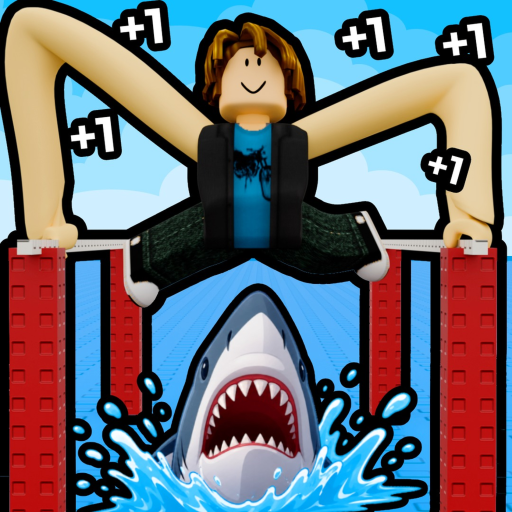
How to play +1 Long Arm Toy Escape on PC
On desktop, hold M1 and move the mouse to angle your arms. That control is stated in the official Roblox description for +1 Long Arm Toy Escape!.
Quick answer and availability note
The official description says to grow your arms to escape the toy factory, but it does not publish an exact growth formula, tick rate, or Stage 1 length requirement.
Availability note — checked September 6, 2026 at 4:15 AM PDT: the official Roblox page showed no running experience and did not give a reason. These controls remain the official published desktop instructions, but the current course could not be reopened for this update.
Confirm the correct game
- Title: +1 Long Arm Toy Escape!
- Creator: Long Armers
- Place ID:
74341114342499 - Official premise: grow your arms to escape the toy factory
A similar title or copied thumbnail does not confirm that a different experience uses the same controls.
Desktop arm controls
- Hold M1. M1 means the primary mouse button, normally the left mouse button. Keep it held while you aim; do not treat it as a single tap.
- Move the mouse to change the arm angle. While M1 is held, move the mouse toward the direction you want the arms to angle.
- Correct the aim before committing to the move. Dated gameplay observations show players making smaller corrections from a stable position before crossing a hazard. This is practical route advice, not an additional official control rule.
- Use an obstacle-specific step only when the section matches. The obstacle page documents waiting for the train, reacting to moving waves, and holding W only after the arms attach on the shown climb.
Why the control may appear not to work
| What you see | Most likely category | What to check |
|---|---|---|
| The arms do not change angle | Input | Confirm you are on desktop, close any open menu, hold M1 continuously, and move the mouse while the game viewport is active. |
| The arms move but cannot touch the next target | Reach | The target may be beyond the current reach. Use a nearer target or continue the game's arm-growth loop. No fixed required number is claimed here. |
| The target is reachable but a hazard hits you | Timing | Pause and read the next train or wave cycle instead of repeating the same timing. |
| The route does not match the guide or video | Changed course | Stop treating the dated route as current and check the Updates page. |
| Roblox shows no Play or Join option | Access | Open the dated availability status. Do not switch to a look-alike experience. |
| A phone or controller behaves differently | Unverified mapping | This page does not transpose the desktop M1 instruction to mobile or console. |
Input problem or reach problem?
- Input problem: the arms do not respond to the official hold-and-move action.
- Reach problem: the arms respond, but the next target remains physically out of range.
- Timing problem: the target is reachable, but a moving hazard interrupts the attempt.
- Version problem: the current room or order no longer matches the dated guide.
This distinction avoids solving a reach problem by changing mouse settings or solving a timing problem by inventing a required Long value.
What this guide does not claim
- An exact arm-growth rate
- A universal Stage 1 Long requirement
- Current Training, Hands, or Rebirth multipliers
- A verified mobile or console control mapping
- That W is a universal arm-control key
- That every server uses the September 2 obstacle order
Frequently asked questions
What is M1?
M1 is the primary mouse button, normally the left mouse button. Hold it while moving the mouse to angle the arms.
Why are my arms not following the mouse?
First confirm that M1 remains held while the mouse moves and that no menu has captured the cursor. If the arms move but cannot reach the target, the problem is more likely reach than input.
How much Long do I need for Stage 1?
No stable official threshold was found. This guide does not replace that missing evidence with a guessed number.
How fast do the arms grow?
The official description confirms that arm growth is part of the escape, but it does not publish a current tick rate or formula.
Can I use these controls on mobile or console?
The exact mobile and console mappings were not verified from a reliable current source. This page only documents the official desktop instruction.
Does W control the arms?
Not as a general rule in this guide. Holding W was observed only after attaching the arms on one documented climbing section.
What should I do if the map looks different?
Open Updates and treat the September 2 obstacle steps as an older snapshot until the current route can be checked.