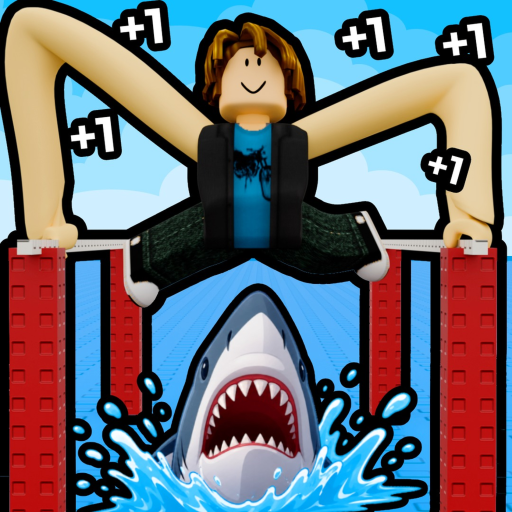
Train, moving-wave, and climbing obstacle help
These tactics were observed in public gameplay available on September 2, 2026. They are useful snapshots, not a promise that every server or future course uses the same layout.
The dated route has not been rechecked after the access change
The official Roblox page showed no running experience at the latest check. The train, moving-wave, and attached-climb observations below have not been rechecked against a possible September 6 course change. Use a tactic only when the obstacle in your current session matches the description.
Jump to an obstacle
Train crossing
Quick answer: Stop outside the train line, let the train complete its pass, then cross after the path clears.
- Stop before entering the train’s travel line.
- Watch one complete pass.
- Move through the opening only after it clears.
Moving waves
Quick answer: Read the next wave direction and angle the arms toward the open side, then repeat as the direction changes.
- Watch where the incoming wave is crossing from.
- Angle the arms toward the available side.
- Re-read the next wave instead of repeating one fixed movement.
Attached-arm climb
Quick answer: Attach the arms to the shown climbing surface, then hold W while keeping the arms aligned.
- Connect the arms to the climbing surface.
- Hold W after the arms are attached.
- Maintain the alignment until the character clears the section.
Is the problem reach, input, timing, or a changed course?
Reach
Your arms respond to M1 and mouse movement, but the next target remains physically out of range. Use a nearer target or return to the game's arm-growth loop. This page does not claim an exact required Long value.
Input
The arms do not change angle while you try to aim. On desktop, keep M1 held and move the mouse while the game viewport is active.
Timing
The target is reachable, but the train or wave hits during the move. Pause and read the next hazard cycle rather than repeating the same start time.
Changed course
The room, obstacle order, or visual layout does not match the dated description. Stop treating this snapshot as current and open the Updates page.
When the current course looks different
- Use the live hazard timing you can see instead of memorizing a fixed number of seconds.
- Recheck the official desktop arm control in the PC guide.
- Treat changed layouts, rewards, or stage order as an update that needs new evidence.
This page does not claim to document every stage. It covers only the three sections supported by the linked September 2 timestamps.